
How to Use OpenCode in Xcode 27
One of the most exciting announcements out of WWDC this year is support for third-party coding agents, or harnesses, in Xcode 27. Over the past couple of years, I’ve used a lot of GUIs and TUIs for coding agents, but the Xcode Intelligence team has knocked it out of the park with the UI and animations, so much so that I feel, for the first time, incentivized to use it.
Xcode 27 achieves this through first-class support for ACP-compatible coding harnesses1, which makes it possible to use any agent even if not officially supported by Apple. This guide uses OpenCode as an example, but the same steps apply to any ACP-compatible harness.
First, we need the path to the executable. For OpenCode installed via Homebrew, that’s /opt/homebrew/bin/opencode. You can find it using the which command:
which opencode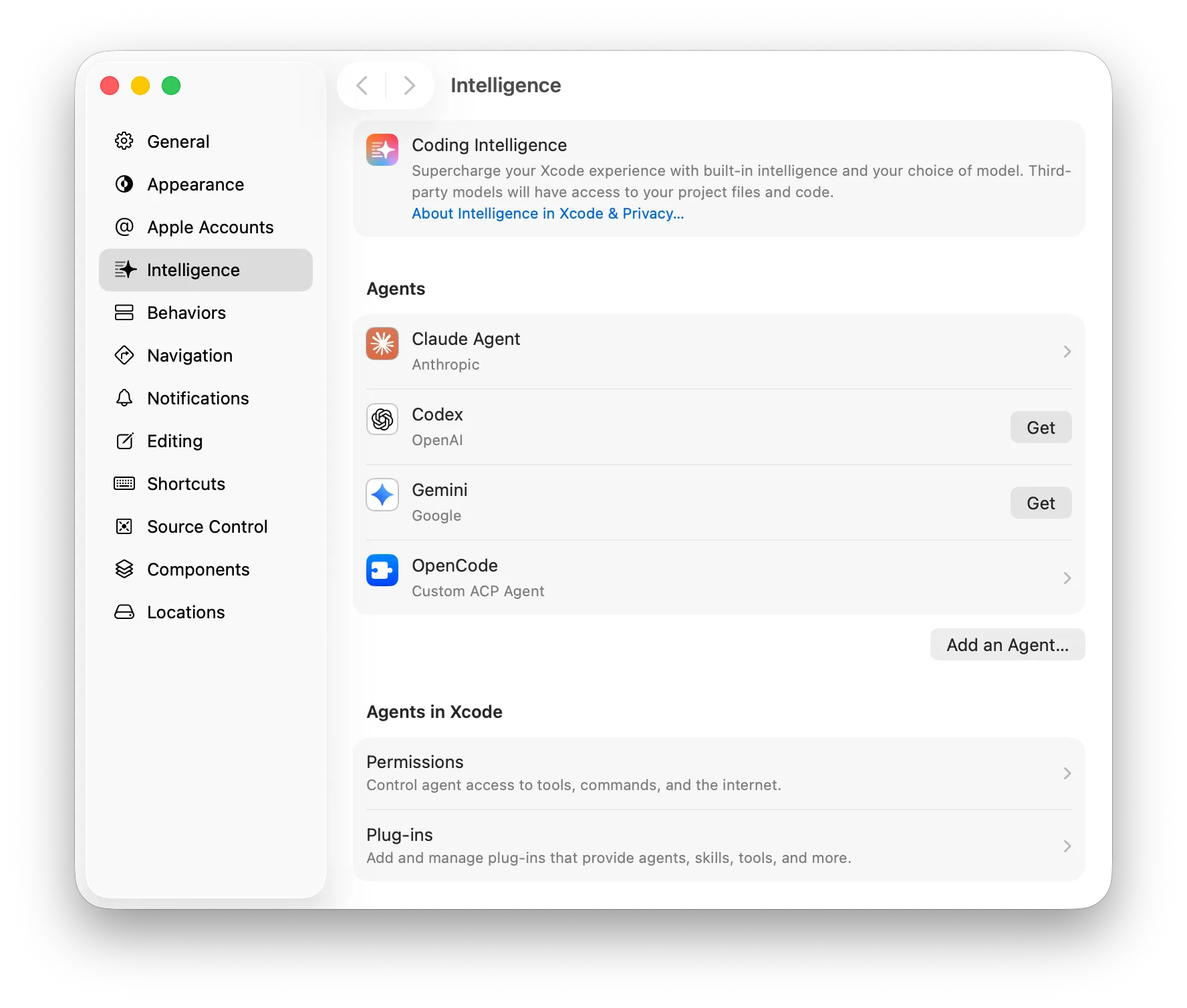
In Xcode Settings, go to the Intelligence tab and click Add an Agent… in the Agents section.
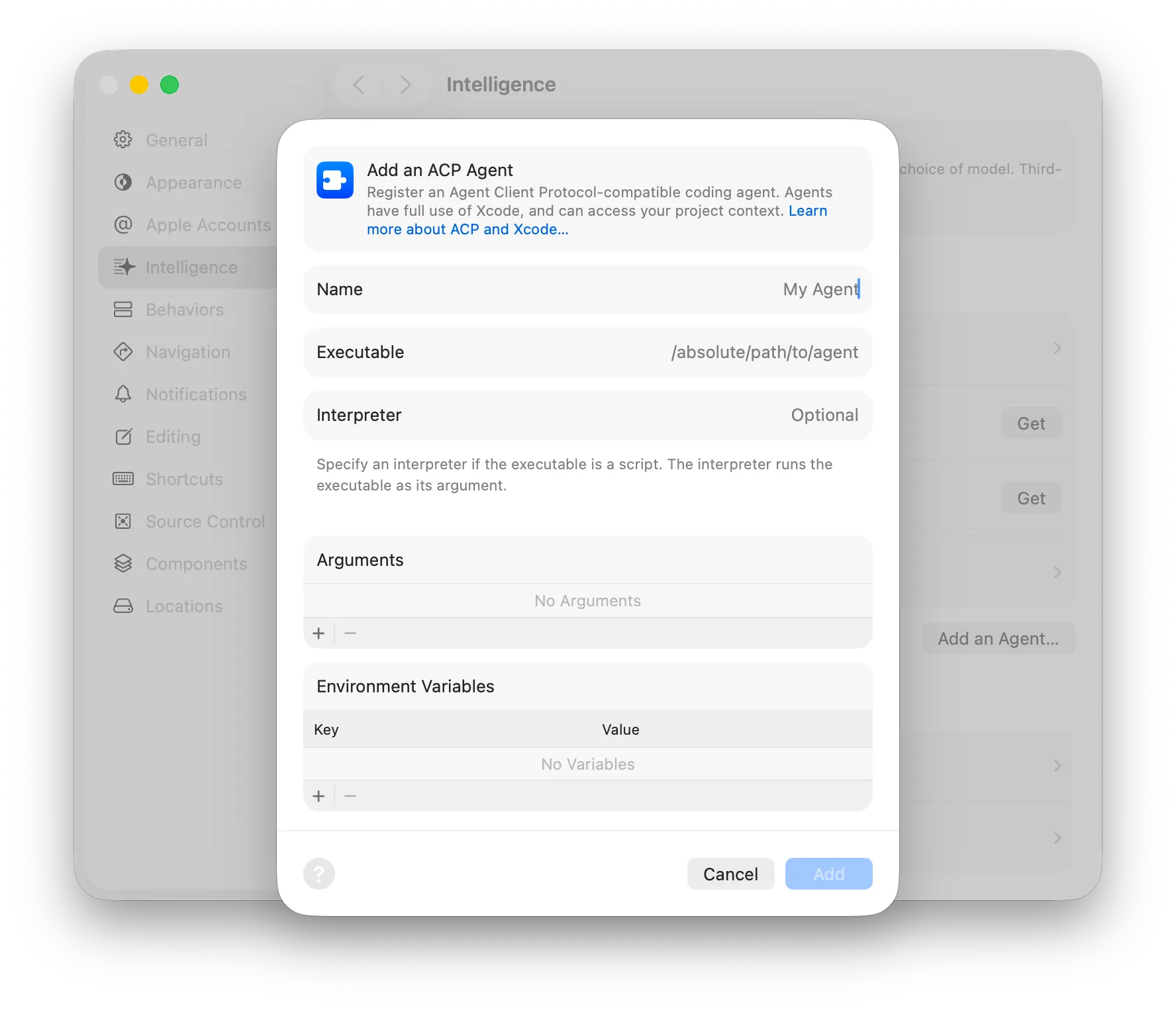
Fill in the Name (anything goes) and Executable fields. Leave Interpreter blank unless the executable is a script.
Some agents require additional arguments to enter ACP mode. For OpenCode, add acp to the Arguments list. See Finding the Right Arguments below if you’re unsure what to put here.
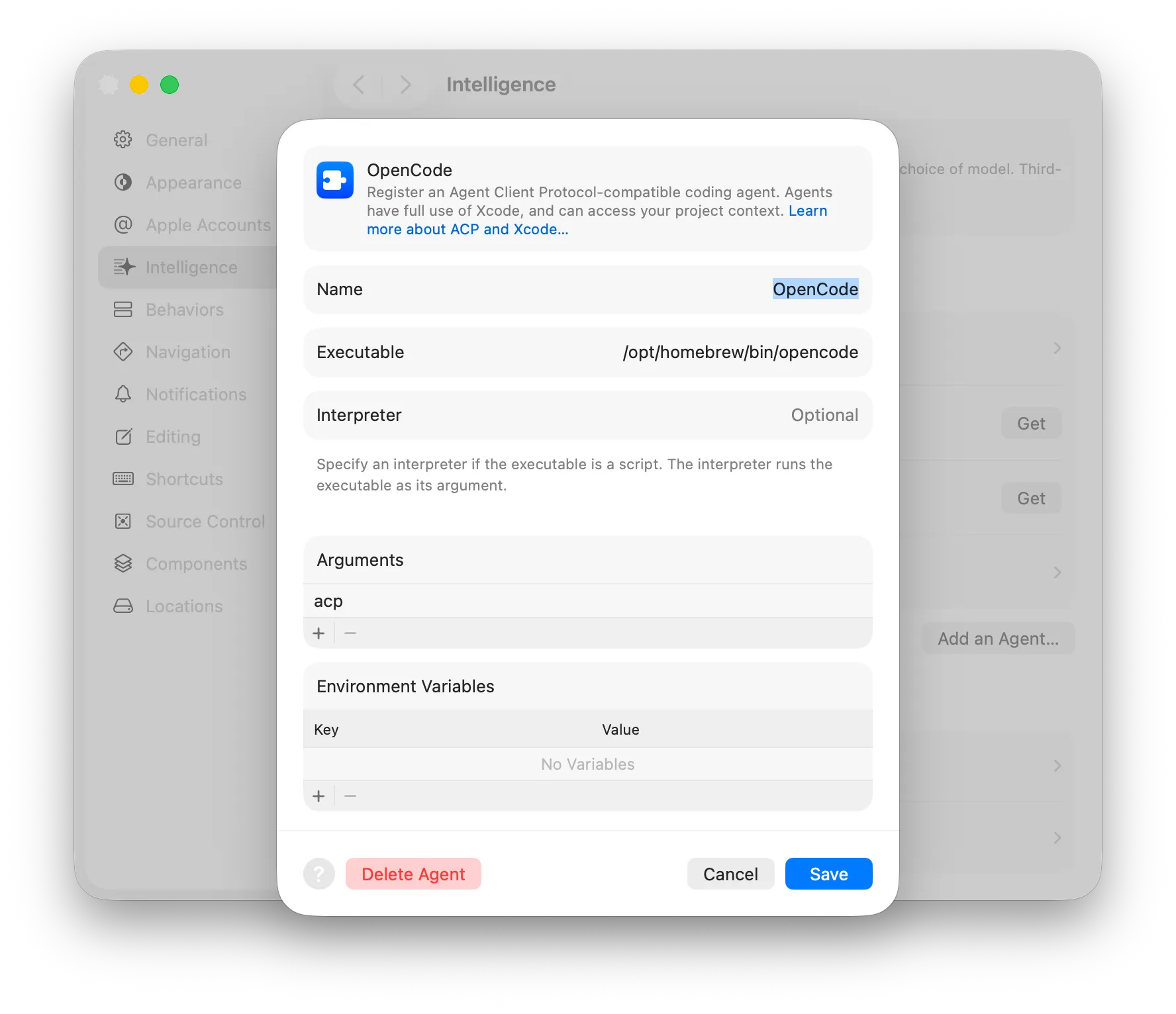
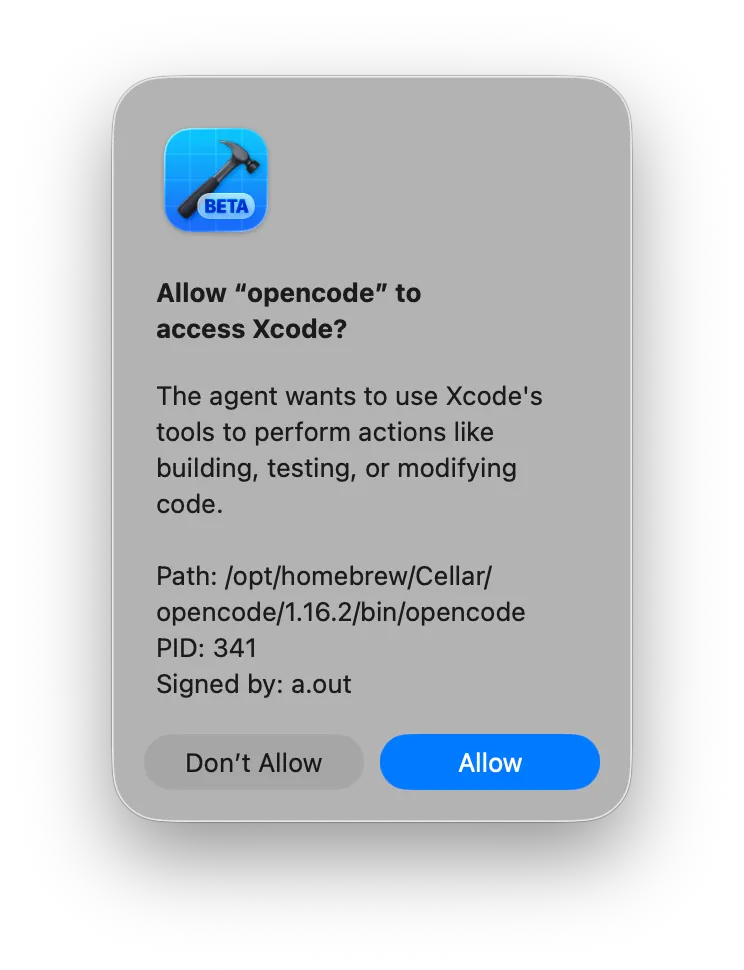
Click Add. The first time Xcode launches the agent during that session, it will ask for permission. Click Allow.
That’s it. The agent is now ready to use in Xcode. In the Intelligence sidebar, click New Conversation and select your freshly added harness from the dropdown.
Finding the Right Arguments
Not all ACP-compatible harnesses need arguments, and many listen for ACP by default. Others, like OpenCode, require a subcommand to switch into protocol mode.
The ACP registry lists all compliant agents. Each entry’s agent.json tells you exactly how to launch it. Here’s OpenCode’s:
{
  "id": "opencode",
  "name": "OpenCode",
  "distribution": {
    "binary": {
      "darwin-aarch64": {
        "cmd": "./opencode",
        "args": ["acp"]
      }
    }
  }
}
Find your agent’s folder in the registry and open agent.json. If there’s an args field under your platform, add those values to the Arguments list in Xcode, one per line. If there’s no args field, leave it empty. Some agents are more finicky to set up than others, but the most popular ones are straightforward.
P.S. I still haven’t figured out a way to change models, but I will update this guide if I do.
Footnotes
-
A harness is a program that wraps an LLM and exposes it as a controllable coding assistant. It handles things like context, file access, shell execution, and tool calling. The combination of a harness and an LLM is what is we often call an autonomous agent. ↩